
Glossary
Cross Docking
Cross docking moves goods from an inbound truck to an outbound truck with little or no storage in between. It suits received items with a confirmed order due within the holding window.

By Praveen Nune, Co-Founder & CEO · Updated 24 Oct 2026
On this page
- 01Definition
- 02Quick facts
- 03What is cross docking, and what is it often confused with?
- 04What the Walmart case shows
- 05Which receipts should you cross-dock?
- 06How do you split one receipt between dock and shelf?
- 07Why do cross-dock plans fail at the dock?
- 08How Arka Inventory handles it
- 09Example
- 10Related terms
- 11Frequently asked
What is cross docking?
Cross docking is unloading goods from an inbound truck and loading them directly onto an outbound truck, with little or no storage between. Stock typically does not stay beyond 24 hours in the cross-dock.
Key takeaways
- Cross-dock a receipt line only when a confirmed order for the same item is due inside the time you can hold goods on the dock.
- The quantity to cross-dock is the smaller of what you received and the confirmed outbound demand due in your window, less any quantity already staged.
- Re-run the split when the truck arrives, not only when you plan it.
Quick facts
- Typical holding time
- Up to 24 hours
- Types
- Pre-distribution and post-distribution
- Decided at
- Each receipt line, not the whole warehouse
- Quantity rule
- The smaller of the quantity received and the confirmed demand due in the window
Cross docking is decided one receipt line at a time. On a single delivery, two lines may have confirmed orders due this week and a third may have none, so two go straight to the outbound truck and the third is put away, meaning moved from the dock to a storage bin.
The term is often misused. Teams call any quick turnaround cross docking, then find part of the receipt had no order behind it and went onto the shelf anyway. Others confuse it with drop shipping, where goods never enter your building.
This entry defines the term, gives five tests to run on each receipt line, and shows how to split a receipt between dock and shelf. It also covers why cross-dock plans fail at the dock.
The five tests apply to each receipt line, not to the whole warehouse. Most operations can cross-dock some lines and shelve the rest. That is the idea the rest of this page builds on.
What is cross docking, and what is it often confused with?
There are two types. In pre-distribution cross docking, the destination of each item is known before the truck arrives. In post-distribution, it is decided after arrival, so goods may wait briefly on the dock.
Three things get mistaken for it:
- Drop shipping. The supplier ships to your customer and the goods never reach your warehouse. In cross docking they arrive at your dock first.
- Transloading. Goods move between transport modes and may be re-palletised.
- Fast warehousing. Normal put-away and picking done quickly is still storage. Cross docking skips both steps for the matched units.
What the Walmart case shows
In an early-1990s case, Walmart ran 85% of its goods through cross-docks and cut its cost of sales by 2 to 3% against the industry average (Stalk, Evans and Shulman, Competing on Capabilities, Harvard Business Review, 1992, as summarised on Wikipedia). That is one retailer from over 30 years ago, so treat it as proof the model can pay, not a saving to expect.
Which receipts should you cross-dock?
Cross-dock a receipt line only when a confirmed outbound order for the same item is due inside the time you can hold goods on the dock. Run these five tests on each line.
Is there a confirmed order for the same item?
Pass: a confirmed order line for the same item exists by the time the truck is unloaded. Fail: demand is only a forecast, so shelve the line.
Is the order due inside your holding window?
Pass: the order is due on or before the end of your holding window. Fail: it is due later, so shelve the line.
Does the supplier deliver on the promised date?
Pass: each of the supplier's last five deliveries arrived on or before the promised date. Fail: any late delivery, so shelve a buffer quantity.
Does the counted quantity match the order?
Pass: the counted receipt matches the order before release. Fail: the receipt is short or damaged, so release only the verified units.
Do the matched units fit in the staging area?
Pass: matched pallets or cartons, measured against the staging floor area (the space where goods wait for their outbound truck) marked for this outbound door, fit without blocking the aisle. Fail: they do not fit, so cross-dock only what fits.
The five-delivery threshold in test 3 is a recommended benchmark. Choose the holding window in test 2 from your dock space. The planned cross-docking template in Microsoft Dynamics 365 Supply Chain Management lets you set a maximum time between arrival and departure, and its worked example uses 5 days.
How do you split one receipt between dock and shelf?
Cross-dock the smaller of two numbers: the quantity received, and the confirmed outbound demand due inside your window less any quantity already waiting in the cross-dock area. Put the rest away as usual. Microsoft Dynamics 365 Business Central calculates it this way and states that you "can't cross-dock more than you have received."
Splitting one receipt between dock and shelf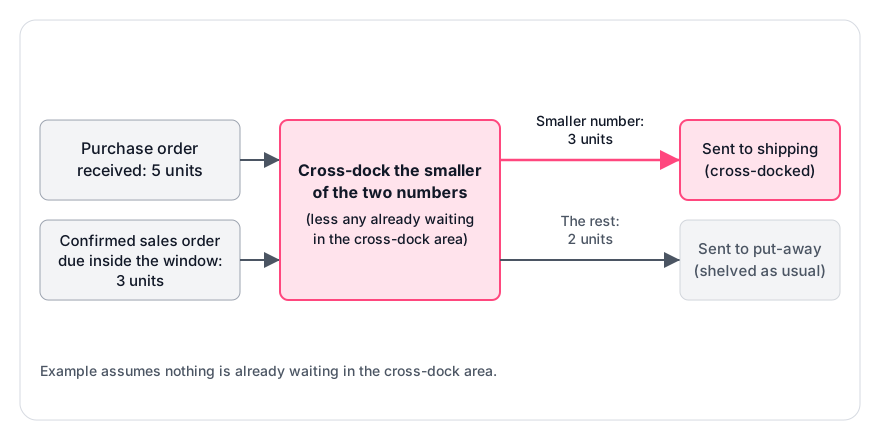
Here is a worked example. The numbers are illustrative, and the formula is the one above. The example assumes nothing is already waiting in the cross-dock area.
The cross-dock share is 90 ÷ 120 = 75%, so 90 units skip put-away and picking. If one 30-unit order is cancelled before arrival, matched demand falls to 60. The split becomes 60 cross-docked and 60 put away, a 50% share. Re-run the split when the truck arrives, not only when you plan it.
- Line
- Received
- Units
- 120
- Line
- Confirmed outbound demand due within 2 days (40 + 30 + 20)
- Units
- 90
- Line
- Cross-dock: smaller of 120 and 90
- Units
- 90
- Line
- Put-away: 120 − 90
- Units
- 30
Why do cross-dock plans fail at the dock?
Plans fail when the link between the receipt and the order breaks.
In Microsoft's planned cross-docking, when the template's Demand requirements setting is Marking, the outbound line must be marked against an inbound order containing the same item. Business Central notes that a cross-dock reservation has no higher priority than any other reservation, so another order could claim the same units.
Four things break the match:
- An order changes or is cancelled after planning.
- The supplier ships late, outside your window.
- A second order reserves the same stock.
- The receipt arrives short.
Demand with no matching stock ends in a stockout. Commit stock to the order as soon as units are counted, and check the count against your goods receipt note before anything leaves the dock.
How Arka Inventory handles it
Arka Inventory has no dedicated cross-dock function. Our suggested method has four connected steps: incoming stock you can see, inventory committed to the order, an alert when it lands, and a transfer that moves it on. You work out the split yourself using the formula above.
- See what is coming. Inventory Visibility shows inventory on hand across locations, inventory on order and expected lead times.
- Commit it to the order. With Commit Inventory, you commit inventory for orders and allocate or reallocate it by delivery date. Sales Orders, which this workflow relies on, are on our Enterprise plan, priced on request. For the rules behind reserving stock, see inventory reservation rules for confirmed sales orders.
- Hear when it lands. We alert your team when inventory arrives for orders under back order (orders waiting for stock that is not yet available), and receiving is barcode-based.
- Move it on. Warehouse transfers between warehouses are included from our Basic plan.
As of October 2026, pricing is billed yearly in US dollars. Every trial runs 15 days with full access and no credit card.
- Plan
- Basic
- Price per month
- $199
- What moves it
- One licence
- Plan
- Advance
- Price per month
- $499
- What moves it
- Two licences
Example
A purchase order for 5 units against a sales order for 3 produces 3 units sent to shipping and 2 sent to put-away, as shown in the Microsoft Dynamics 365 documentation.